Hiding cables under a desk works best when the setup remains easy to change. A perfectly concealed route can become frustrating when a charger fails or a monitor moves. The better goal is a clean desk surface, supported cables underneath, and clear access to the connections you use.
Map the cables before mounting anything
Disconnect unused wires and group the remaining cables by destination. Power cables usually run toward a power strip. Monitor and USB cables run between the computer, screen, and accessories. Daily charging cables need to return to the desktop.
Place each device in its normal position first. This prevents a tidy route from becoming too short once the laptop, monitor, or lamp is moved back into place.
Move the power strip off the floor
A power strip mounted under the desktop removes several cables from view at once. Keep enough space around plugs and power bricks, and choose a location that does not reduce legroom. The power strip should remain reachable without crawling behind furniture.
If mounting is not suitable, a supported under-desk tray can hold the strip. Avoid loose adapters stacked on top of each other. Heat and plug access still matter.
Use trays for the main route
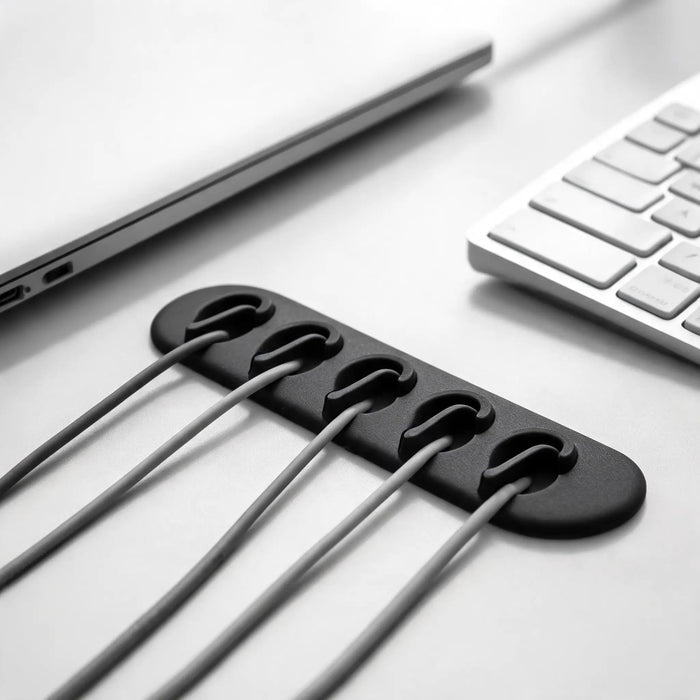
A cable tray is useful for long horizontal runs and larger adapters. Clips work better for individual cables and short turns. Sleeves can combine wires that travel in the same direction. Our cable tray versus clips comparison explains where each option fits.
- Use a tray for the power strip and main cable bundle.
- Use clips where one cable changes direction.
- Use sleeves only for cables that share the same route.
- Keep connectors and labels visible.
Bring daily cables back to the desk
Phone, headphone, and laptop charging leads should be easy to reach. Route them from the under-desk system to one fixed point near the desktop edge. A cable dock can stop these leads from falling behind the desk while keeping the surface uncluttered.
Hide monitor and laptop cables
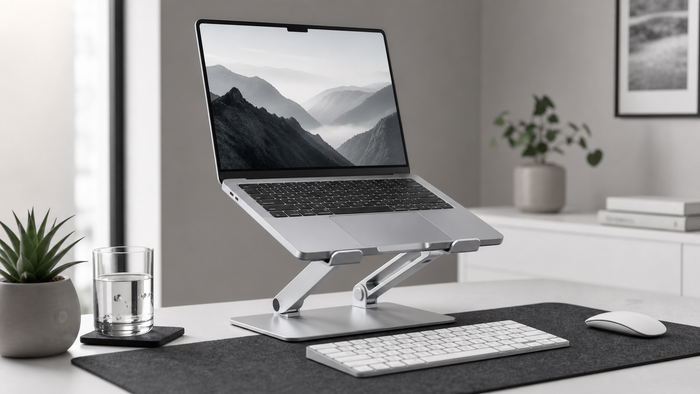
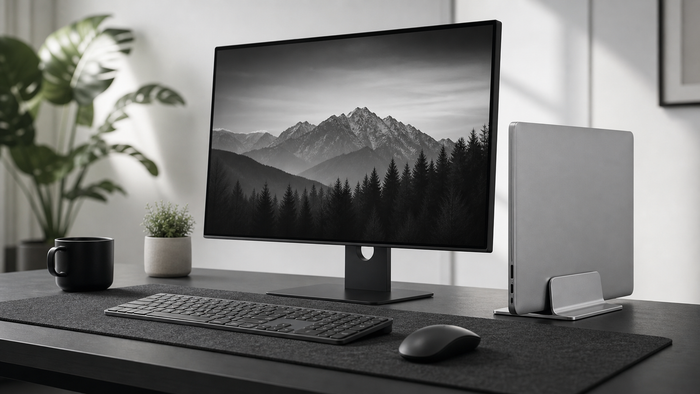
Run monitor wires down the rear of the stand or arm before taking them underneath the desktop. Leave enough slack for tilt and height adjustment. For laptop setups, position the charger near the laptop stand and route the longer power side underneath. See the laptop stand setup guide for a complete layout.
Keep the route serviceable
Use reusable ties instead of closing every bundle permanently. Label both ends of similar cables. Leave a small service loop near devices that move. These details make it easier to replace a charger, add a screen, or clean the desk later.
Ten minute cable reset
- Remove cables that no longer connect to a device.
- Move the power strip under the desktop.
- Route the largest cable group through a tray.
- Clip loose individual wires close to the desk.
- Return daily chargers to one accessible edge.
- Test every device before tightening the route.
For more detail, read the under desk cable management guide, use the complete checklist, or browse cable management products.