A standing desk changes one important part of cable management: the distance between the desktop and the wall or floor keeps changing. A route that looks tidy while sitting can pull tight, catch behind a drawer, or drag a charger when the desk rises. The goal is a controlled cable path with enough movement where it is needed.
How to organize charging cables under a standing desk
Raise the desk to its highest position before fixing any cable permanently. Connect the monitor, laptop charger, desk lamp, and accessories you use every day. Check where every cable becomes tight. Lower the desk again and look for loops that could reach your feet, chair, or storage.
Leave one deliberate movement loop near the point where cables travel from the moving desktop to a fixed wall outlet. Keep the rest of the route supported. This gives the desk room to move without leaving loose cable everywhere.
Mount power to the moving desk
A power strip attached beneath the desktop can simplify the setup. Device cables only need to reach the strip, while one power cable follows the desk movement. Position the strip where plugs remain accessible but do not touch knees, drawers, or the desk frame.
Use a secure mount that suits the strip and desk material. Avoid balancing adapters in a tray. Heavy power bricks need their own support so their weight does not pull on a connector.
Choose the right cable route
A vertical cable spine can guide the main power cable toward the floor. A flexible sleeve works for a smaller group of wires. Clips are useful for short routes across the underside of the desktop. Compare these options in our desk cable management guide and under desk cable guide.
- Keep signal and power cables supported at regular intervals.
- Protect cables near metal frame joints and moving legs.
- Place connectors where they are easy to inspect.
- Keep the desk controls free from cable pressure.
Plan monitor and laptop cables
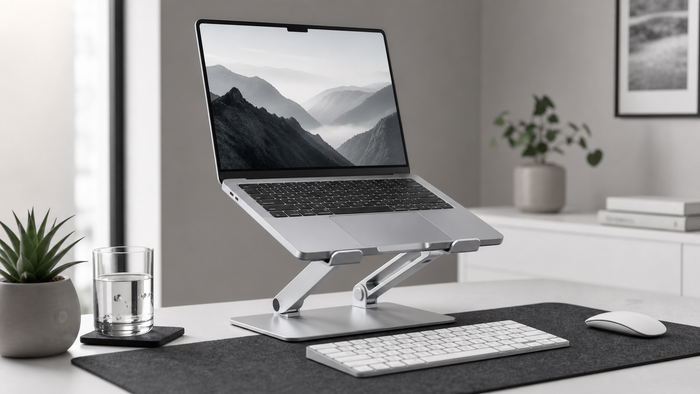
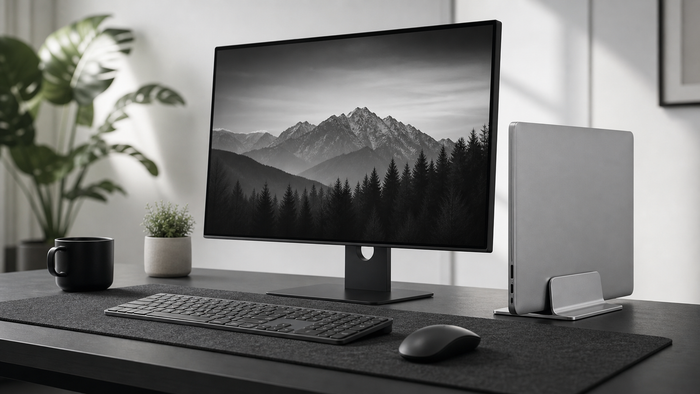
Monitor cables often need more movement than expected, especially when a monitor arm changes position. Route them along the arm first, then toward the central cable path. If you use a laptop, place the charger and dock close to the laptop position. Our monitor height guide and laptop stand collection can help you plan the equipment before fixing the cables.
Keep daily chargers accessible
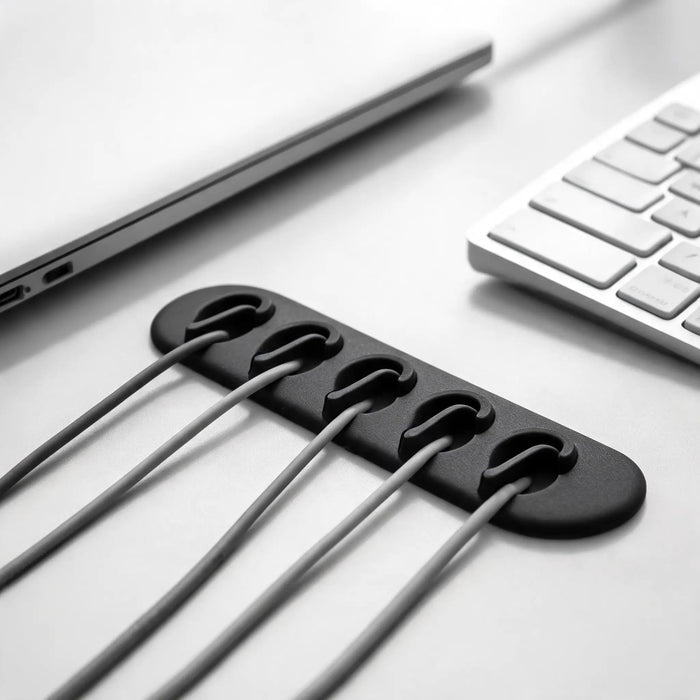
Do not hide every charging cable permanently. A desktop cable dock keeps frequently used leads at the desk edge while the longer route stays controlled underneath. This is useful for phones, headphones, and a laptop that moves between home and office.
Test before you finish
Move the desk through its complete range several times. Watch the movement loop, monitor cables, power connection, and anything close to the frame. Sit at the desk and check legroom. Stand and confirm that no cable rubs against a sharp edge.
A practical standing desk checklist
- Connect every device used during a normal workday.
- Raise the desk fully and identify tight cables.
- Mount the power strip and support heavy adapters.
- Create one controlled movement path.
- Test sitting height, standing height, and the transition.
- Label cables before closing trays or sleeves.
Continue with the desk cable management checklist or browse cable management gear for a cleaner setup.